Connect Wahoo to bring saved rides and workouts into the same history as your recovery, strength and nutrition data.
Before you connect
Sync your ELEMNT or other Wahoo recording app with your Wahoo account. Connecting freddy reads saved cloud records; it does not connect directly to a KICKR or heart-rate sensor.
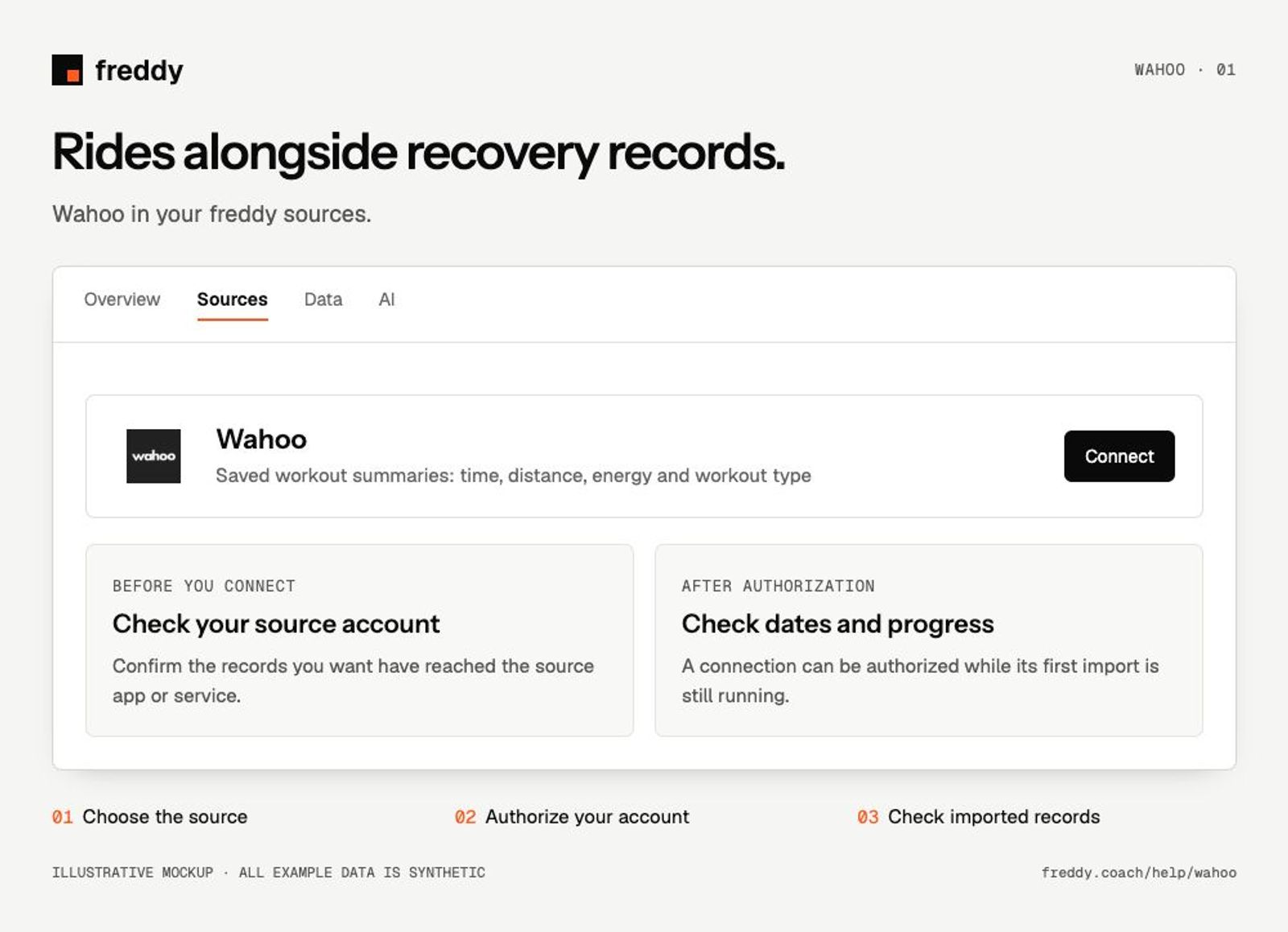
Connect
- Open Wahoo in Sources and choose Connect when available.
- Sign in to the Wahoo account containing your records. Review the permissions and authorize the categories you want to share.
- Return to freddy and inspect the source’s import status and date coverage.
What reaches freddy
- Saved workout summaries: time, distance, energy and workout type.
- Heart rate, power, cadence and related summary metrics when present.
- Available workout metadata; a summary or FIT reference does not guarantee every per-second field is imported.
History and updates
freddy imports the workouts Wahoo exposes for your account and picks up new saved records. A ride must finish uploading to Wahoo before it can arrive in freddy.
If data is missing
- A ride is still on your bike computer: finish the Wahoo sync first.
- Power or heart rate is missing: check the original workout for that sensor’s recording.
- The same ride also arrives from another training service: compare start time and duration before adding the two sources together.
Use it with your other sources
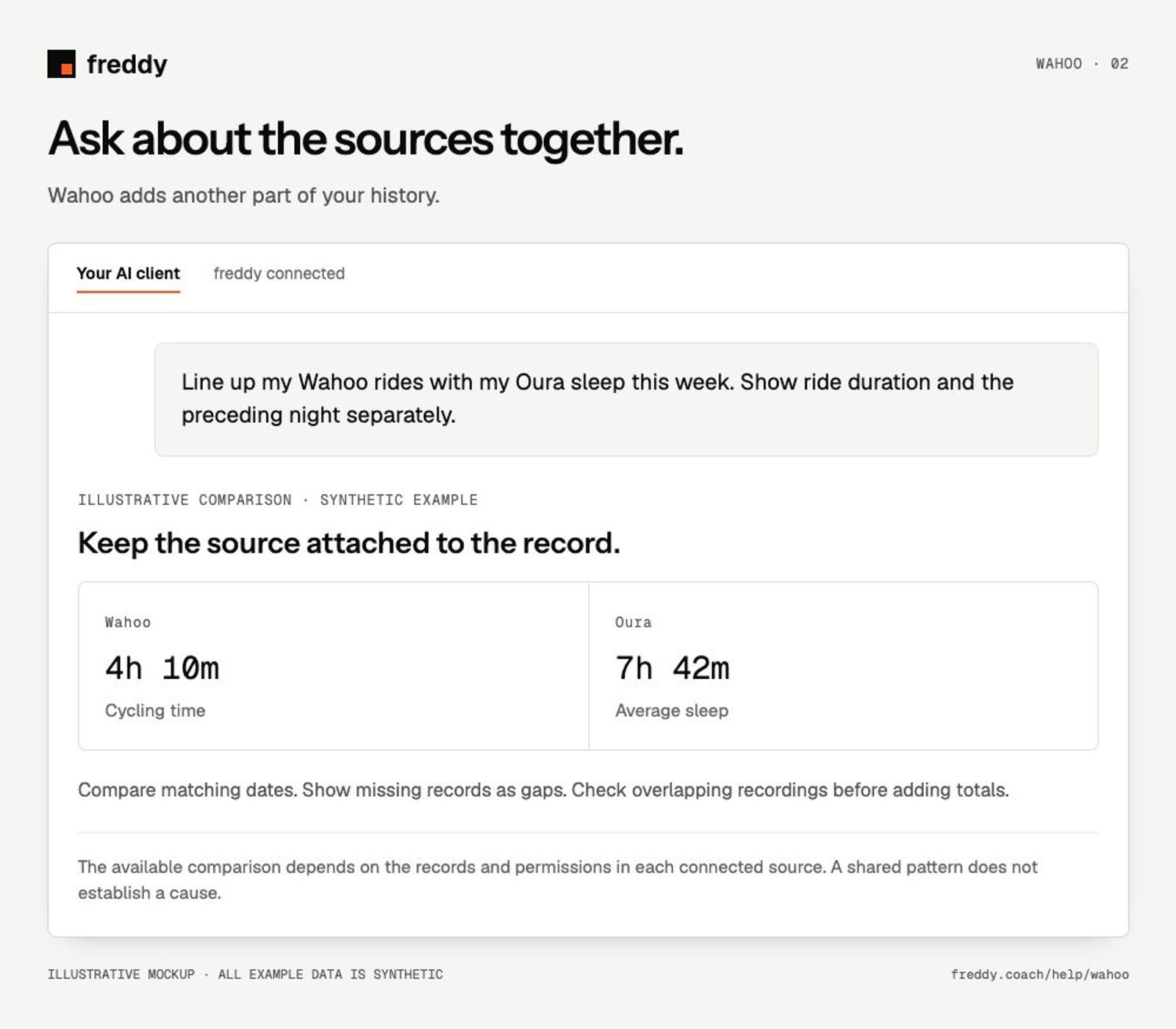
Line up my Wahoo rides with my Oura sleep this week. Show ride duration and the preceding night separately.
Pause or disconnect
Use Paused on the source to stop future sync without deleting its stored history. Disconnect removes the connection and its associated data from freddy; read the confirmation before continuing. It does not delete your records in Wahoo. You can also revoke freddy’s authorization in the source service’s connected-app settings.
Provider instructions
Wahoo support and workout help
Related help
Find missing data and understand sync
Use your Wahoo data with your AI
Pick your AI for the setup steps and ideas for what to ask.