Connect Garmin workouts, sleep and daily records, then add older account history or FIT activity detail from your Garmin export.
Before you connect
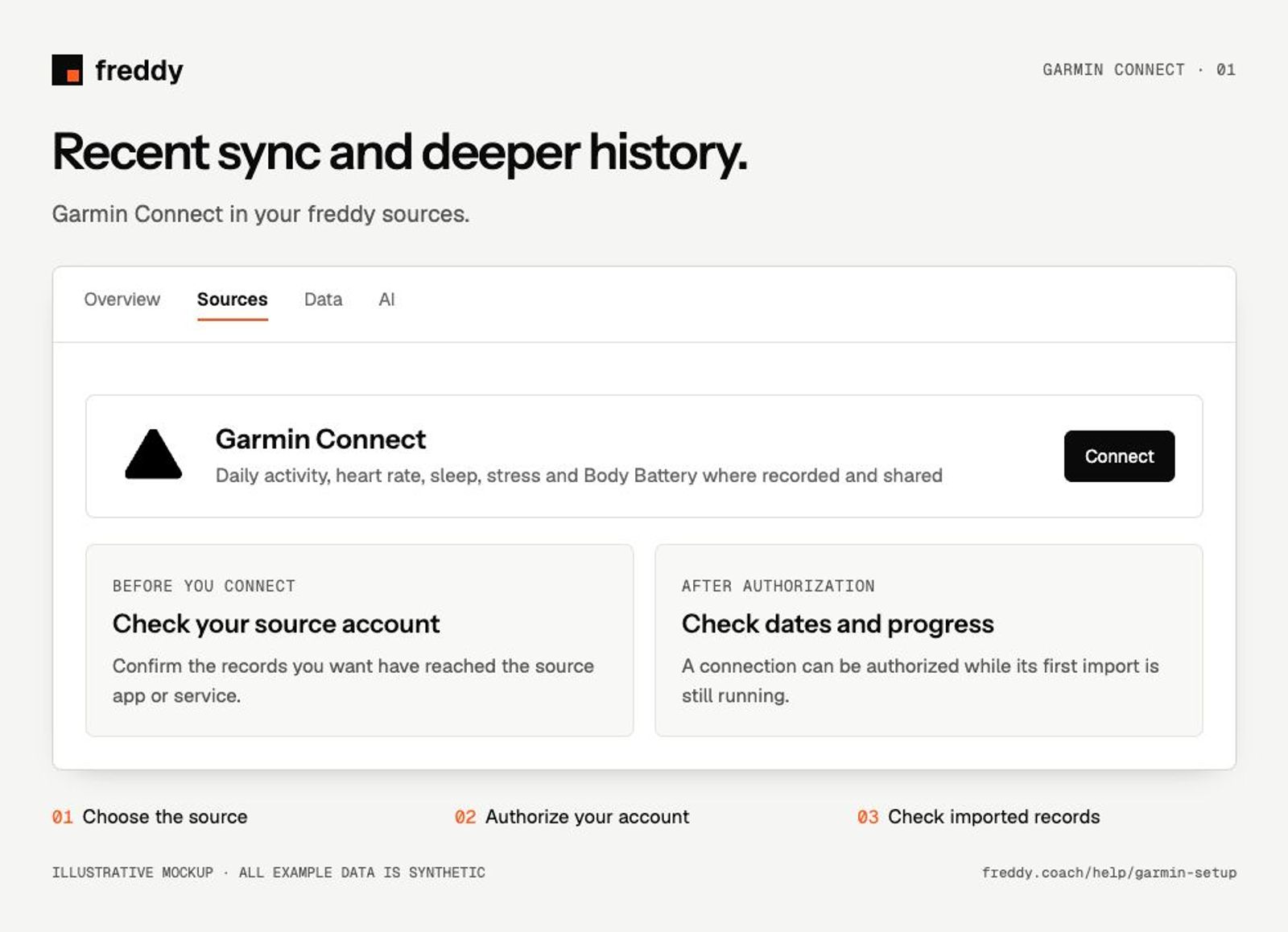
Sync your device to Garmin Connect and use the same Garmin account to authorize freddy. Review the historical-data permission as well as the ongoing data categories.
Connect
- Open Garmin Connect in freddy Sources and choose Connect.
- Sign in to Garmin, review the data categories and approve historical data access if you want the initial history import.
- Return to freddy. Let the initial requests progress and check the dates that have arrived.
- For older history or FIT detail, open the Garmin export options on the source card when available.
What reaches freddy
- Daily activity, heart rate, sleep, stress and Body Battery where recorded and shared.
- Workout summaries and supported activity detail.
- Available body and health measurements from Garmin, plus supported records from your account export.
History and updates
The direct Garmin connection can request about a month of history. Older history comes through your Garmin export. Account history and .FIT activity files have separate import options; completing one does not mean the other has finished.
If data is missing
- New records are missing: check that your device uploaded them to Garmin Connect.
- Recent history is absent: check the historical-data consent and the source’s import status. Avoid disconnecting merely to retry a running import.
- Months or years are missing: use the archive import guide; repeating the direct sync cannot extend Garmin’s historical window.
Use it with your other sources
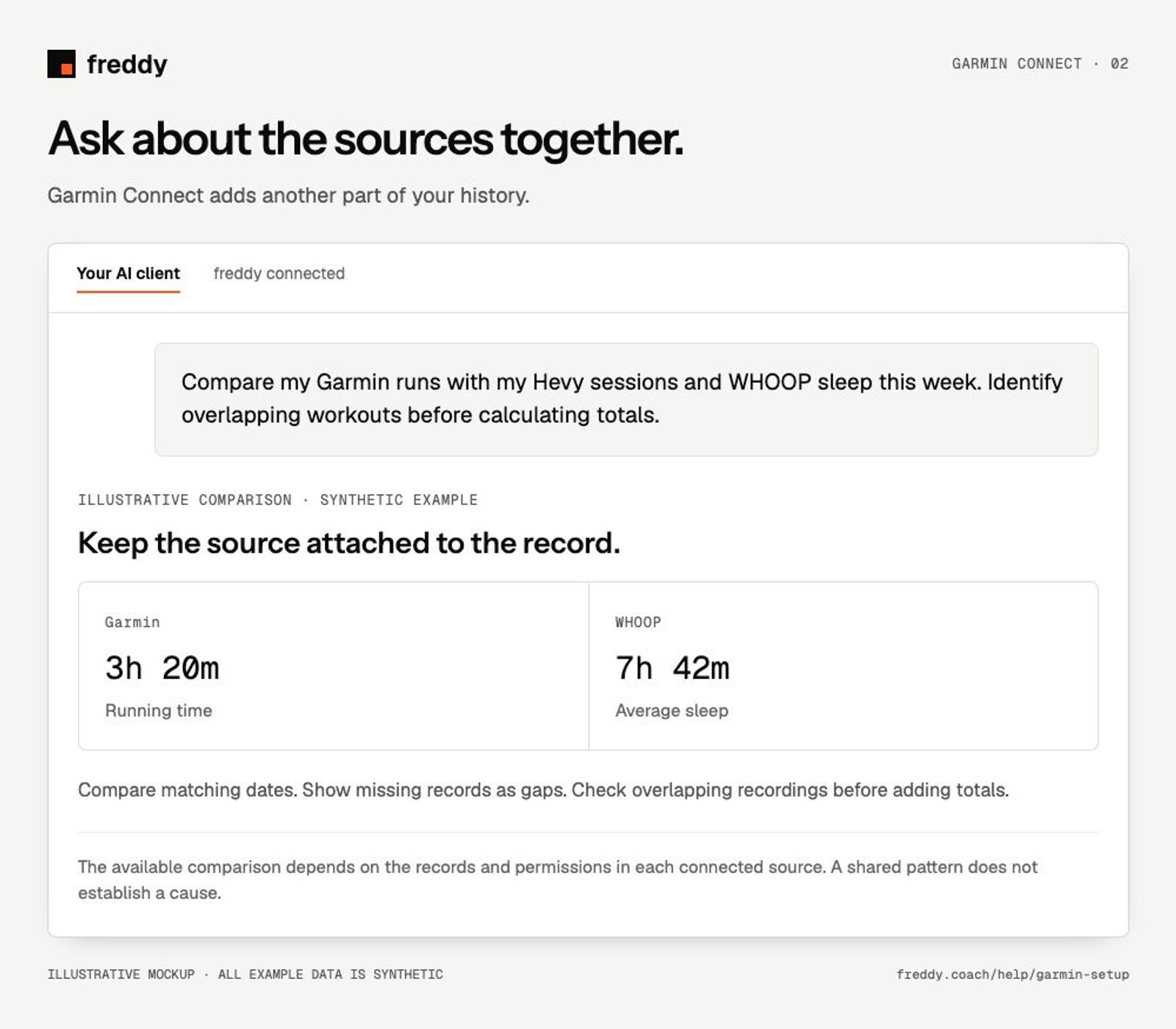
Compare my Garmin runs with my Hevy sessions and WHOOP sleep this week. Identify overlapping workouts before calculating totals.
Pause or disconnect
Use Paused on the source to stop future sync without deleting its stored history. Disconnect removes the connection and its associated data from freddy; read the confirmation before continuing. It does not delete your records in Garmin Connect. You can also revoke freddy’s authorization in the source service’s connected-app settings.
Provider instructions
Import Garmin account history and FIT files
Related help
Find missing data and understand sync
Use your Garmin data with your AI
Pick your AI for the setup steps and ideas for what to ask.