Bring Suunto workouts and daily records together with your sleep, strength and nutrition sources in freddy.
Before you connect
Sync your watch to the Suunto app and use that same Suunto account when connecting freddy.
Connect
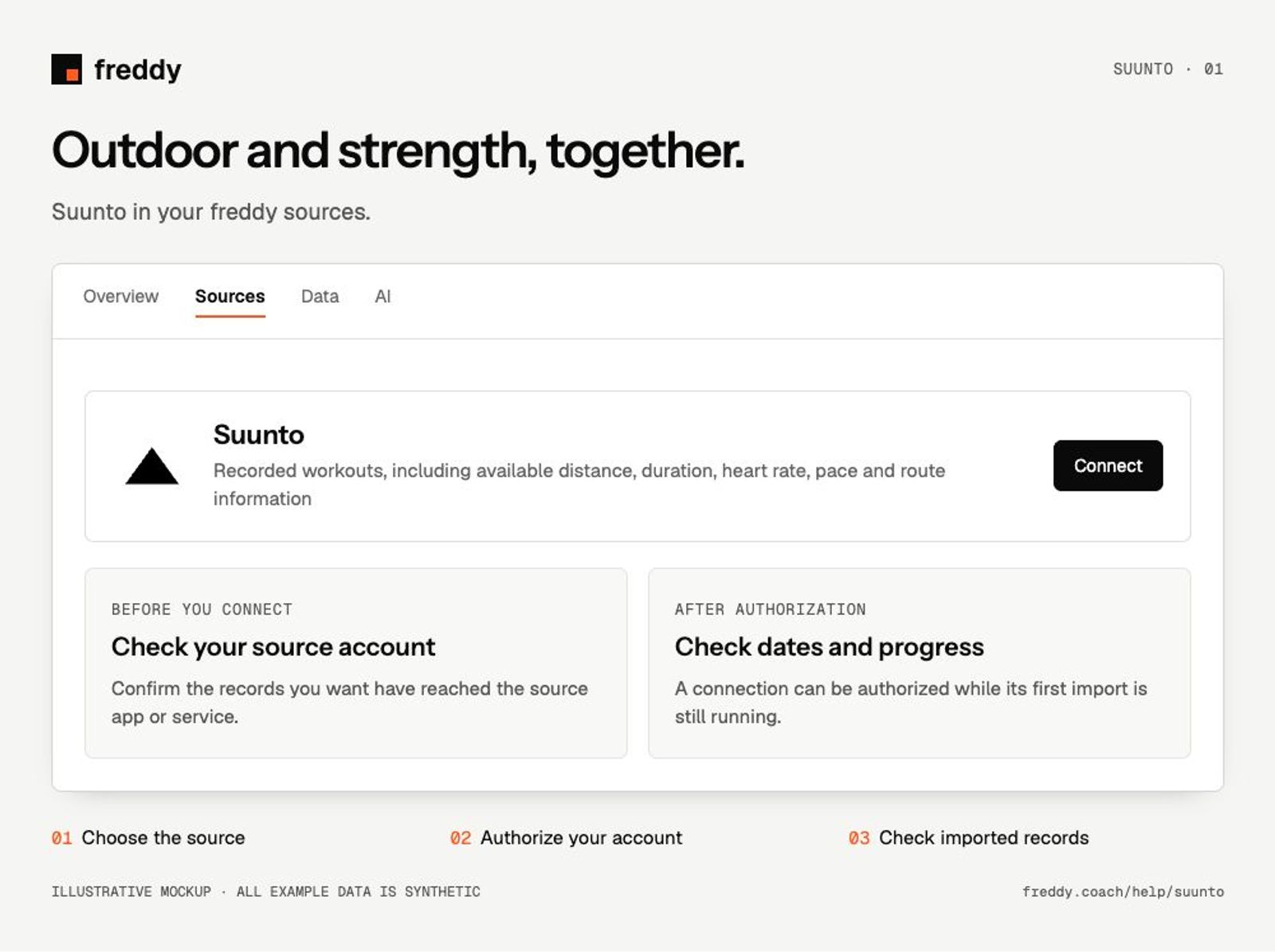
- Open Suunto in Sources and choose Connect when available.
- Sign in to the Suunto account containing your records. Review the permissions and authorize the categories you want to share.
- Return to freddy and inspect the source’s import status and date coverage.
What reaches freddy
- Recorded workouts, including available distance, duration, heart rate, pace and route information.
- Daily activity, sleep and recovery records exposed for your device.
- Additional workout measurements where the Suunto record includes them.
History and updates
The initial import requests the history Suunto makes available for each data type. Training and daily health records may cover different dates. New records become available after the watch and Suunto app have synced.
If data is missing
- A finished workout is missing: confirm it is saved in the Suunto app and the app has an internet connection.
- Sleep or recovery is absent: check whether your watch recorded that category and whether it is visible in Suunto.
- An old workout has fewer fields: freddy can only import the fields present in the shared record, not reconstruct missing sensor data.
Use it with your other sources
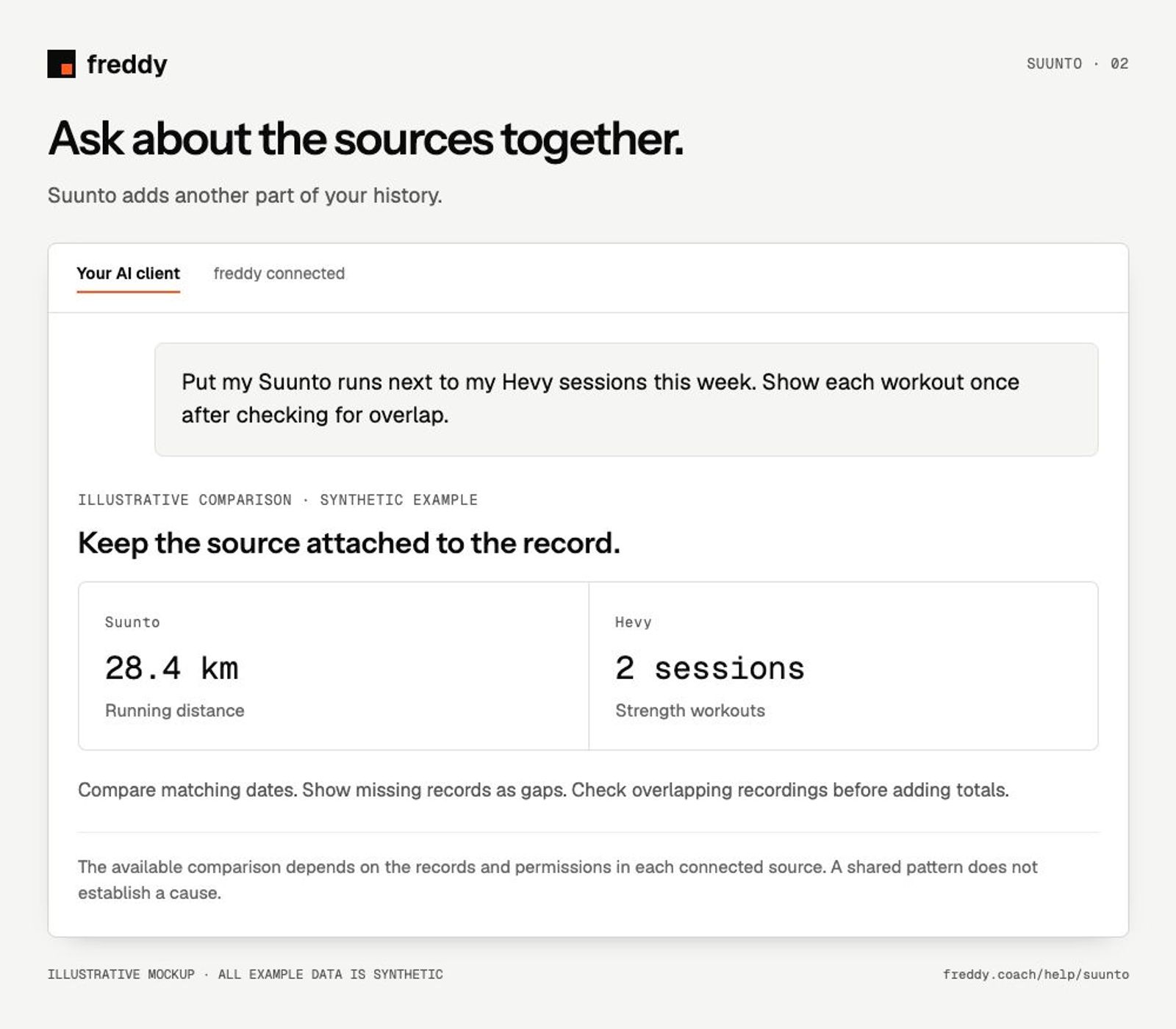
Put my Suunto runs next to my Hevy sessions this week. Show each workout once after checking for overlap.
Pause or disconnect
Use Paused on the source to stop future sync without deleting its stored history. Disconnect removes the connection and its associated data from freddy; read the confirmation before continuing. It does not delete your records in Suunto. You can also revoke freddy’s authorization in the source service’s connected-app settings.
Provider instructions
Suunto connected data services
Related help
Find missing data and understand sync
Use your Suunto data with your AI
Pick your AI for the setup steps and ideas for what to ask.