Bring Polar training, sleep and recovery into the same history as your strength workouts, nutrition and other sources.
Before you connect
Use the Polar account that receives your device data in Polar Flow. freddy shows two independent connections: Polar history sync and Polar live sync.
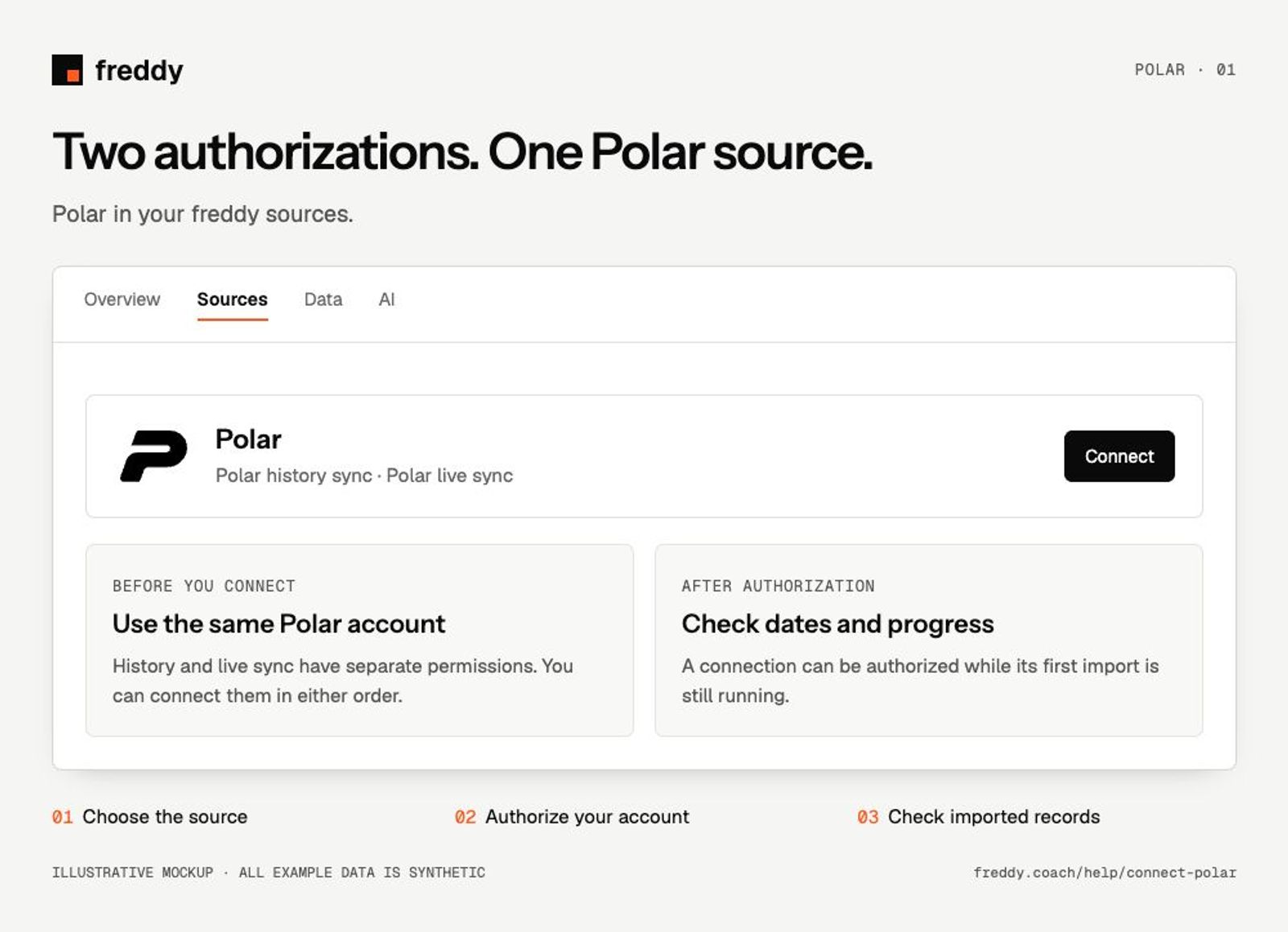
Connect
- Open Polar in Sources and connect Polar history sync. Sign in to Polar and approve the read permissions you want to share.
- Return to the Polar source and connect Polar live sync with the same Polar account. You can connect the two in either order.
- Sync your device with Polar Flow, then return to freddy and check each stream’s progress.
What reaches freddy
- Training sessions, daily activity, sleep and Nightly Recharge.
- Heart rate, heart rate intervals, skin temperature and fitness records where your device and permissions provide them.
- SleepWise and cardio load through live sync; deeper history through the separate history authorization.
History and updates
History sync imports the older records Polar makes available and also checks for new data. Live sync adds notifications and data types from Polar’s other service, whose historical window is roughly 30 days. Connecting both gives broader coverage; one authorization does not grant the other.
If data is missing
- One stream is connected: open the Polar source and check both authorizations. Different connected states are possible.
- SleepWise or cardio load is missing: check live sync. Older training is missing: check history sync and its import progress.
- Recent data is missing from both: first confirm that it has reached Polar Flow, then use Sync in freddy.
Use it with your other sources
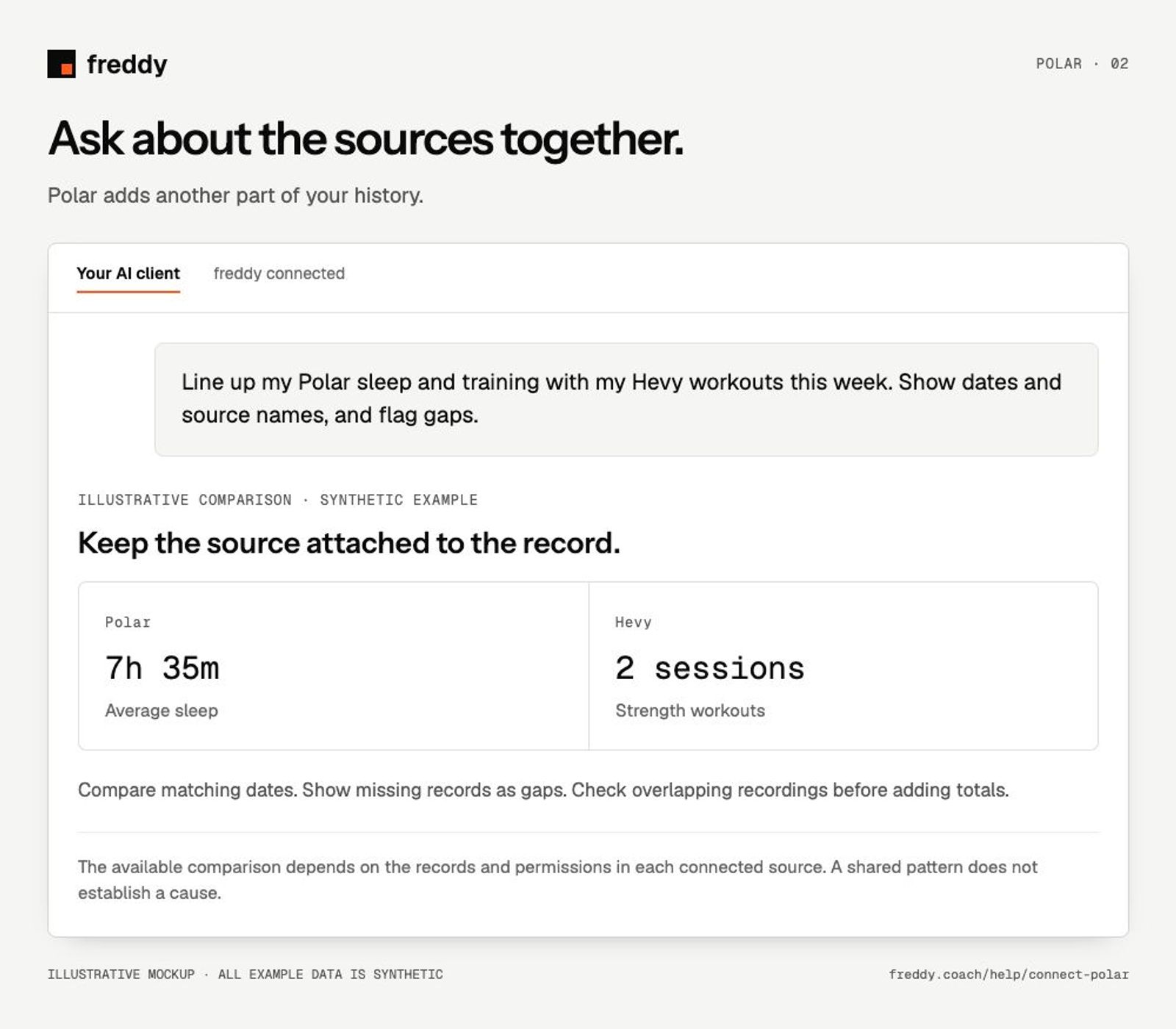
Line up my Polar sleep and training with my Hevy workouts this week. Show dates and source names, and flag gaps.
Pause or disconnect
Polar’s two disconnect actions are independent. Disconnecting one removes its authorization and the freddy data attributed to that connection. The other can keep importing. Disconnect both to remove both streams; your Polar Flow records stay with Polar.
Provider instructions
Related help
Find missing data and understand sync
Use your Polar data with your AI
Pick your AI for the setup steps and ideas for what to ask.