Bring your Withings measurements into freddy to read weight, blood pressure, sleep and activity alongside your other sources.
Before you connect
Use the Withings account and person profile assigned to your measurements. This matters when several people share a scale or account.
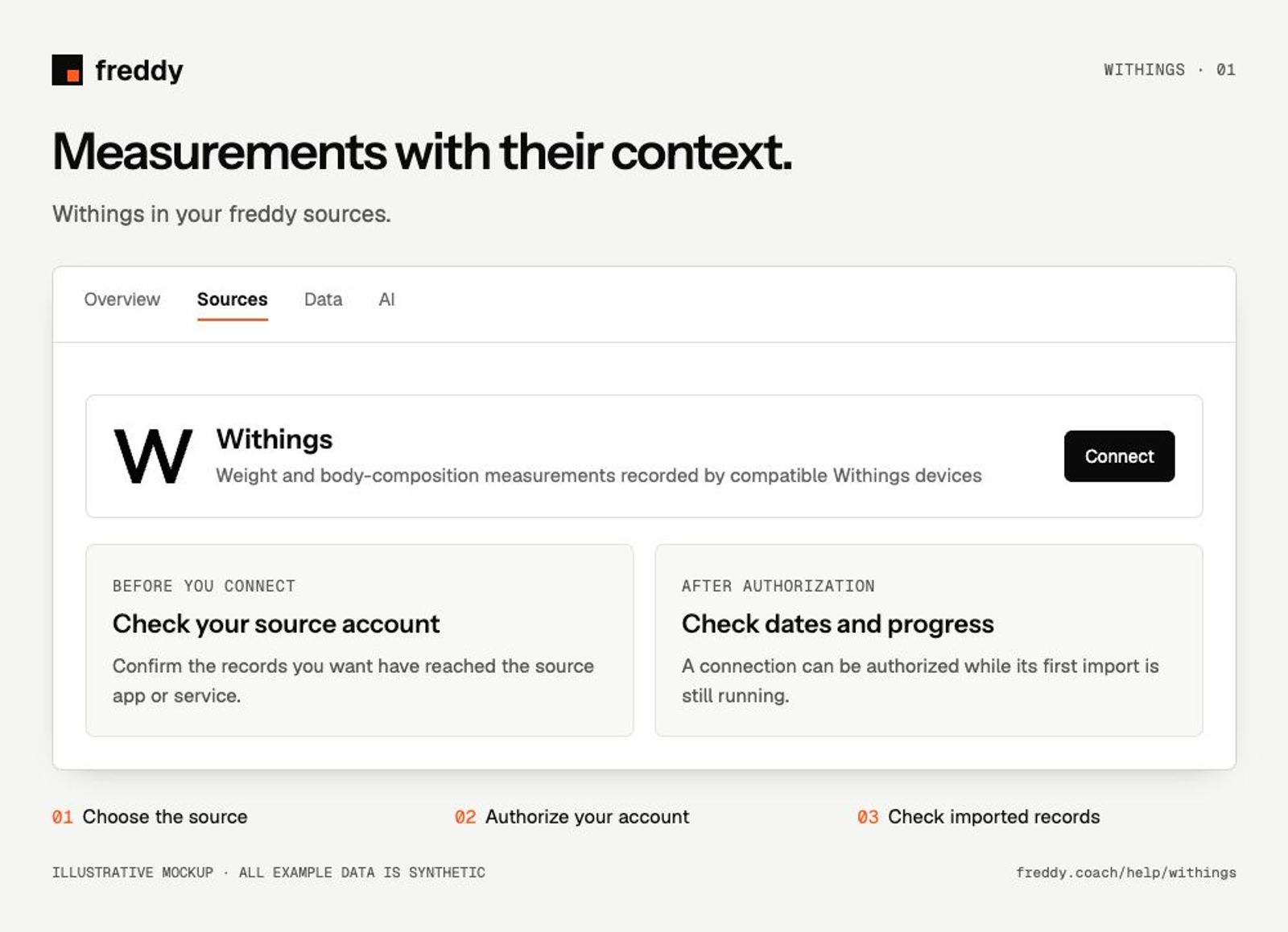
Connect
- Open Withings in Sources and choose Connect when available.
- Sign in to the Withings account containing your records. Review the permissions and authorize the categories you want to share.
- Return to freddy and inspect the source’s import status and date coverage.
What reaches freddy
- Weight and body-composition measurements recorded by compatible Withings devices.
- Blood pressure, pulse, temperature and oxygen measurements where recorded and shared.
- Daily activity and sleep from devices that support them.
History and updates
The first import reads available historical measurements and supported activity and sleep records. New records arrive after the device uploads to Withings. A scale measurement assigned to another person will not belong to your connected profile.
If data is missing
- The scale has readings but freddy does not: open Withings and check the person assigned to each measurement.
- One device is missing: confirm it appears under the connected Withings account and has uploaded recently.
- Only weight appears: other measures depend on your device, the measurements it recorded and the permissions you granted.
Use it with your other sources
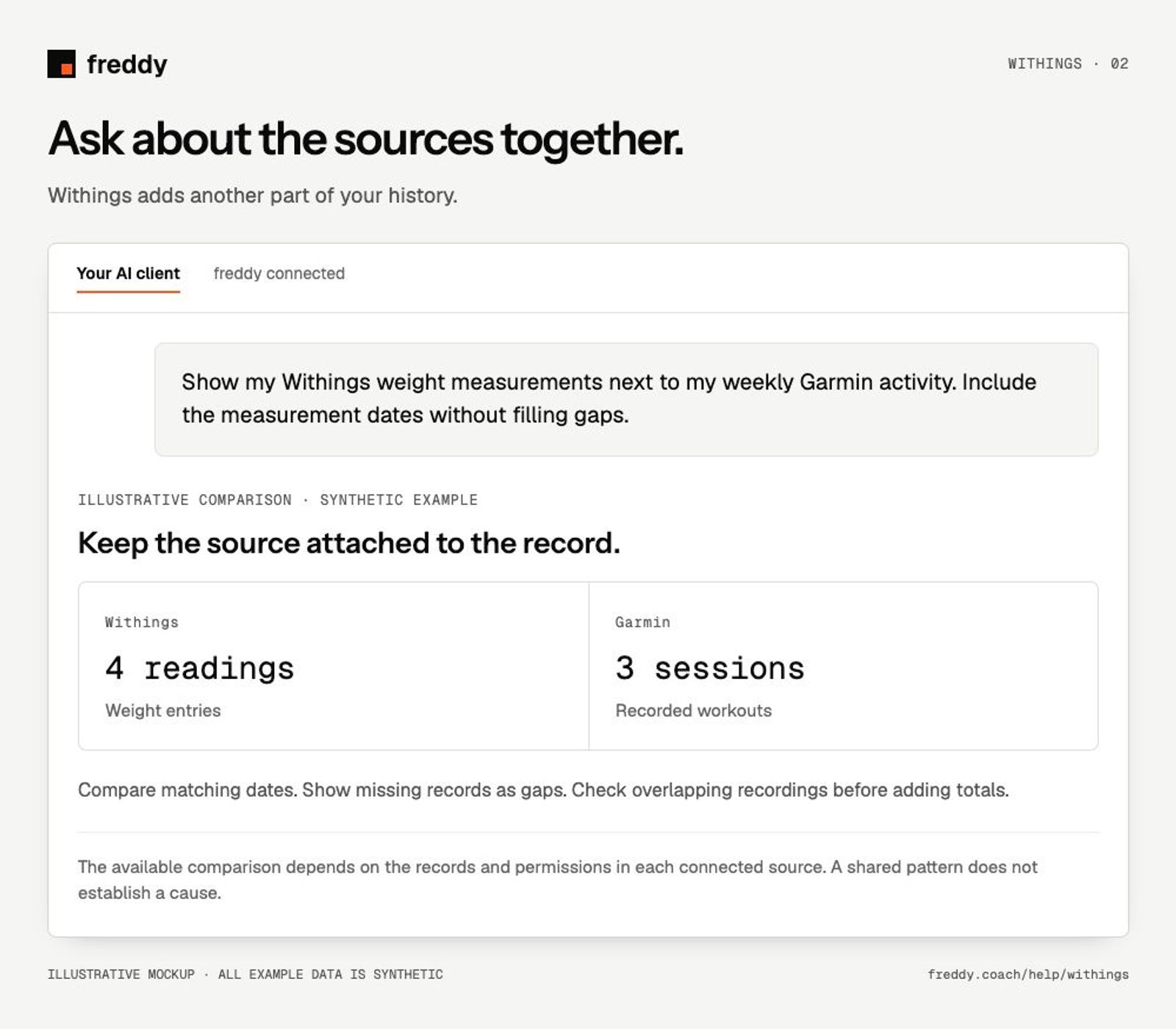
Show my Withings weight measurements next to my weekly Garmin activity. Include the measurement dates without filling gaps.
Pause or disconnect
Use Paused on the source to stop future sync without deleting its stored history. Disconnect removes the connection and its associated data from freddy; read the confirmation before continuing. It does not delete your records in Withings. You can also revoke freddy’s authorization in the source service’s connected-app settings.
Provider instructions
Withings authorization and data permissions
Related help
Find missing data and understand sync
Use your Withings data with your AI
Pick your AI for the setup steps and ideas for what to ask.