Bring your Hevy exercise log into freddy so sets, reps and weights can sit beside endurance sessions and sleep records.
Before you connect
Hevy API access requires Hevy Pro. Your freddy account and your Hevy subscription are separate.
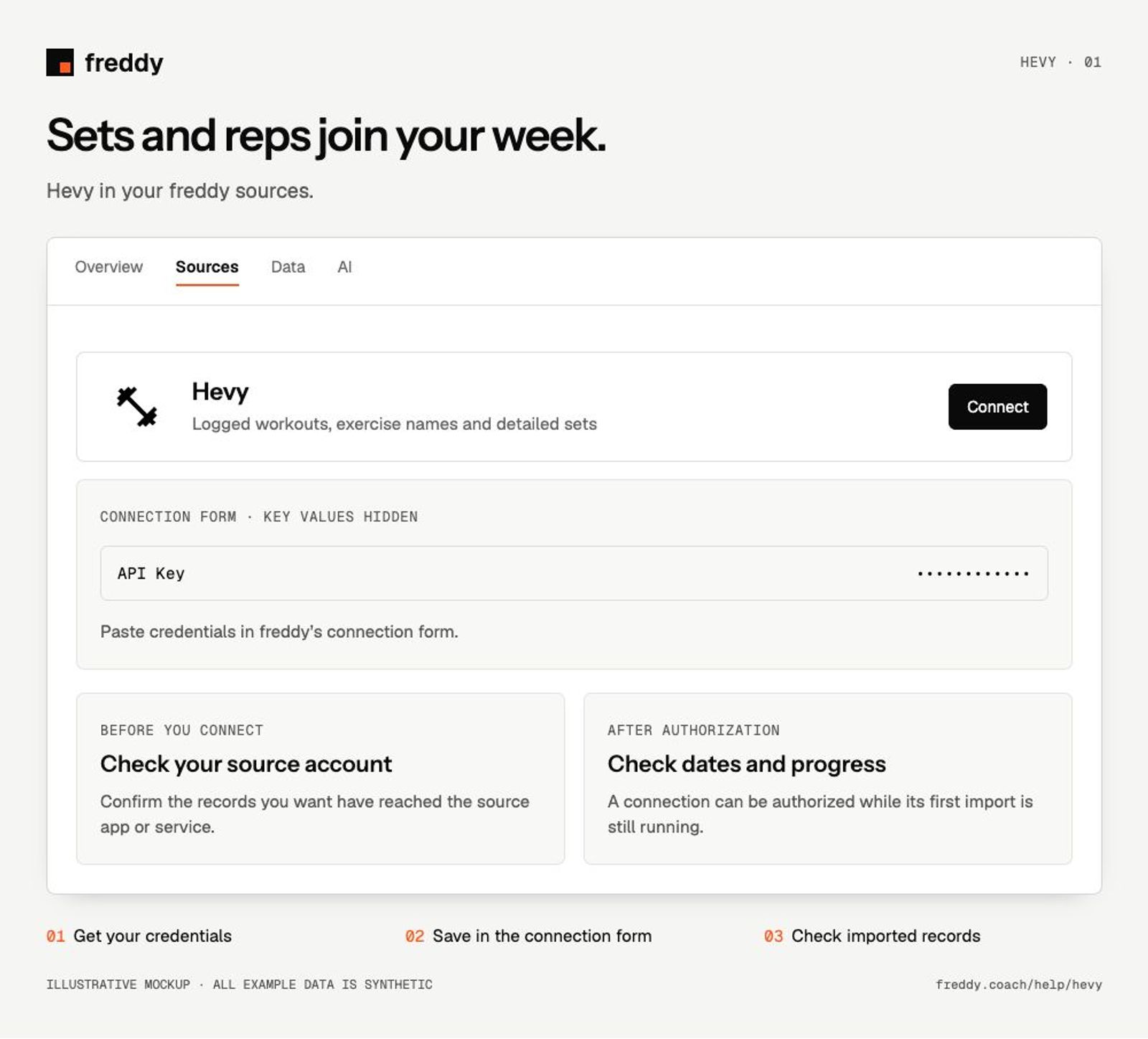
Connect
- Open Hevy’s Developer settings and copy your API key.
- In freddy Sources, choose Hevy and Connect. Paste the key into the API Key field and save.
- Return to the source and check the import progress, then compare a completed workout with your Hevy log.
What reaches freddy
- Logged workouts, exercise names and detailed sets.
- Reps, load and available set details from the workout record.
- Body measurements where available in your Hevy account.
History and updates
freddy imports your available workout history and checks periodically for new or edited sessions. Save the session in Hevy first. A routine template is not the same as a completed workout.
If data is missing
- The key is rejected: confirm Hevy Pro access and copy the current key without extra spaces.
- A session is missing: finish and save it in Hevy, then use Sync in freddy.
- A key stopped working after replacement: update the connection with the new key. Do not send API keys to your AI client or support chat.
Use it with your other sources
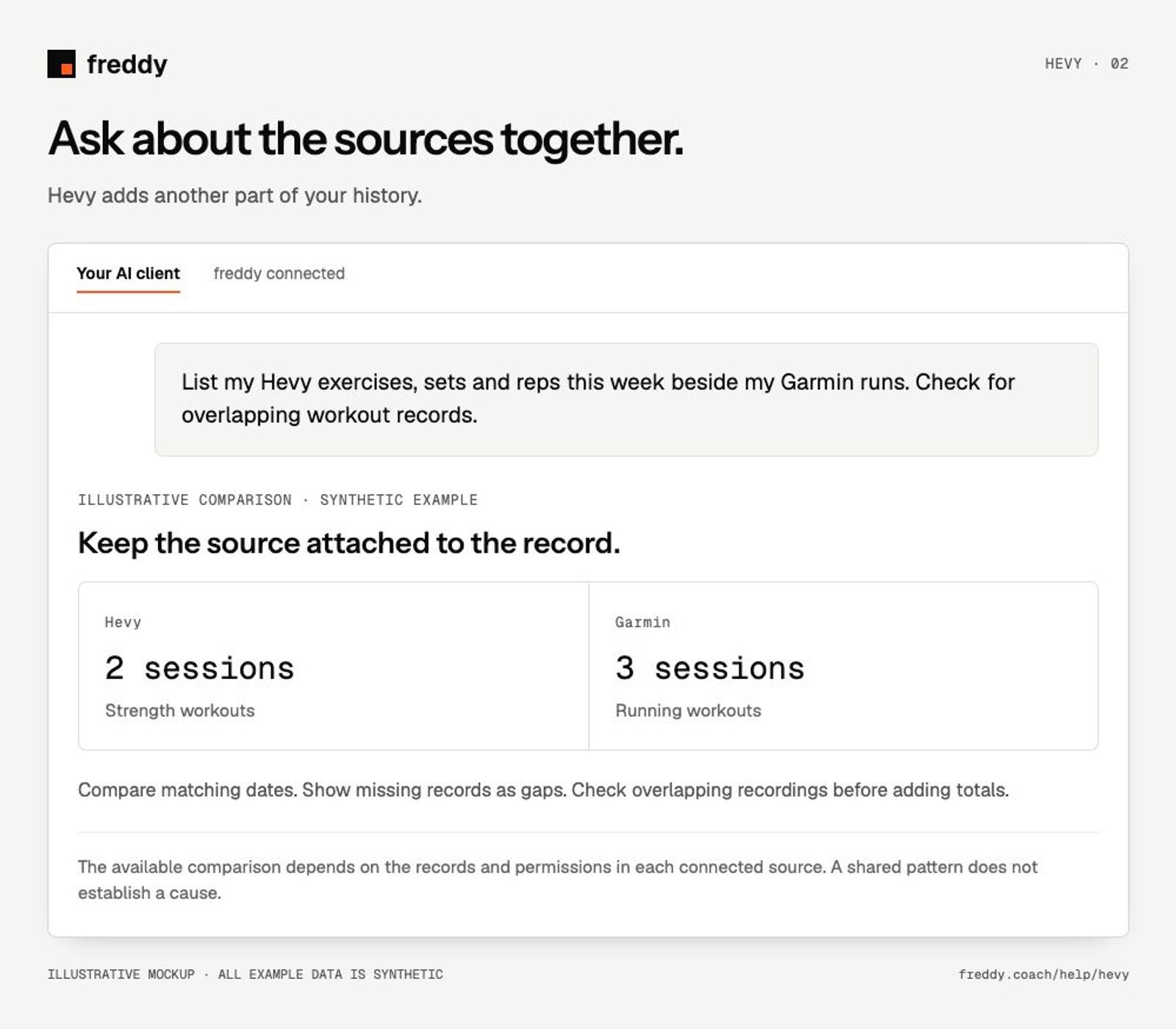
List my Hevy exercises, sets and reps this week beside my Garmin runs. Check for overlapping workout records.
Pause or disconnect
Use Paused on the source to stop future sync without deleting its stored history. Disconnect removes the connection and its associated data from freddy; read the confirmation before continuing. It does not delete your records in Hevy. You can also revoke the key or API client in the source service’s settings.
Provider instructions
Related help
Find missing data and understand sync
Use your Hevy data with your AI
Pick your AI for the setup steps and ideas for what to ask.