Bring Runalyze activities and wellness records into freddy to compare your training analysis with sleep, strength and body measurements.
Before you connect
Anyone on freddy can connect Runalyze. Runalyze’s read API needs a Supporter or Premium account and a personal token with read access.
Connect
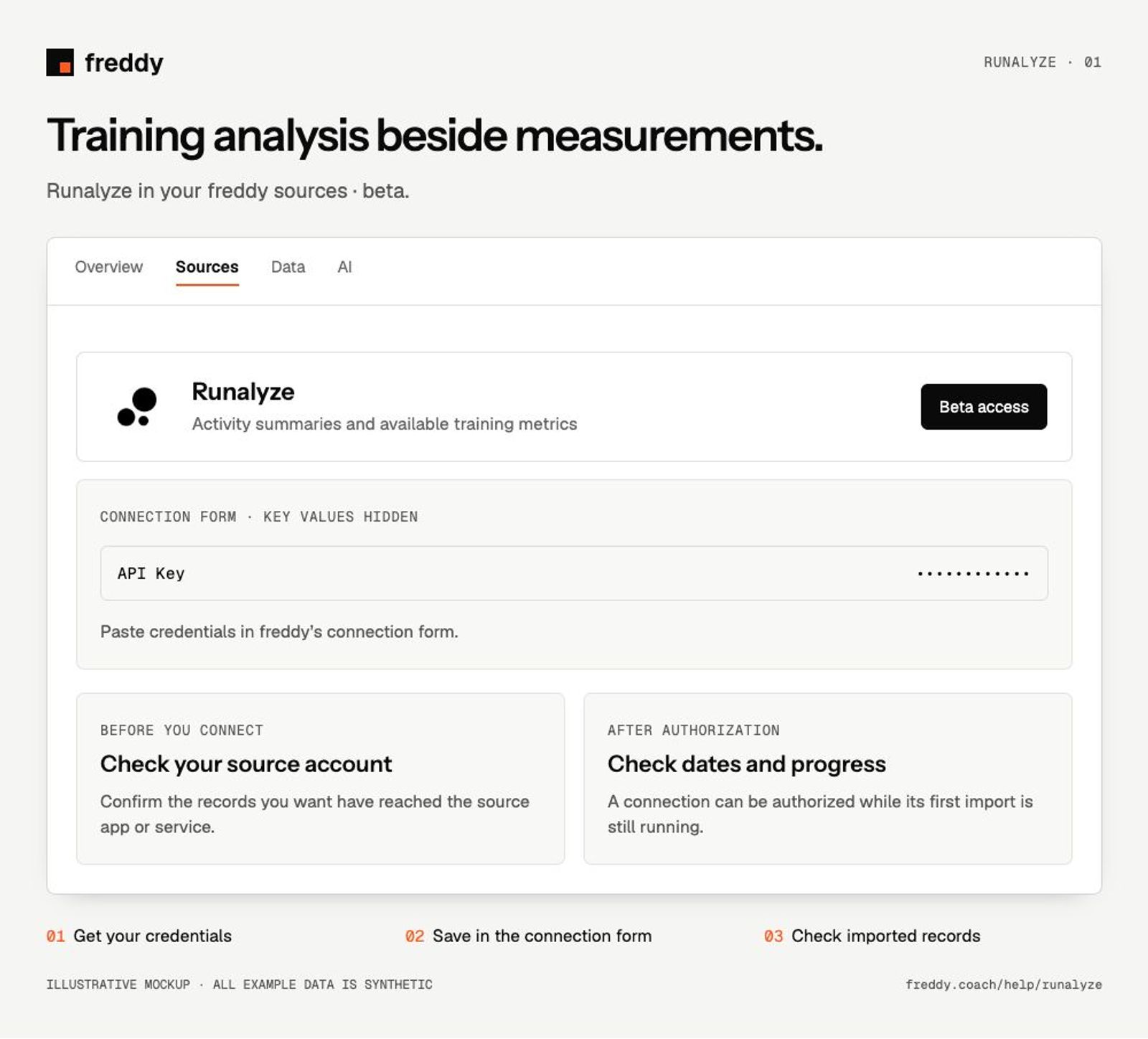
- Open Runalyze Settings → Personal API. Enable read access and create a token with an expiry that suits your use.
- Open the Runalyze source in freddy Sources, choose Connect, and paste the token into API Key.
- Save, allow the history import to progress, and compare a recent activity with Runalyze.
What reaches freddy
- Activity summaries and available training metrics.
- Wellness records such as sleep, HRV, weight or blood pressure when recorded.
- Runalyze estimates and scores where supplied, distinct from the underlying measurements.
History and updates
freddy imports available activity and wellness history and checks for updates periodically. The data exposed through Runalyze’s API may differ from a full interactive chart in Runalyze.
If data is missing
- Authorization fails: check read access, token expiry and the Runalyze subscription required for API reads.
- A computed metric differs from another source: keep Runalyze’s calculation identified instead of treating it as the same measurement.
Use it with your other sources
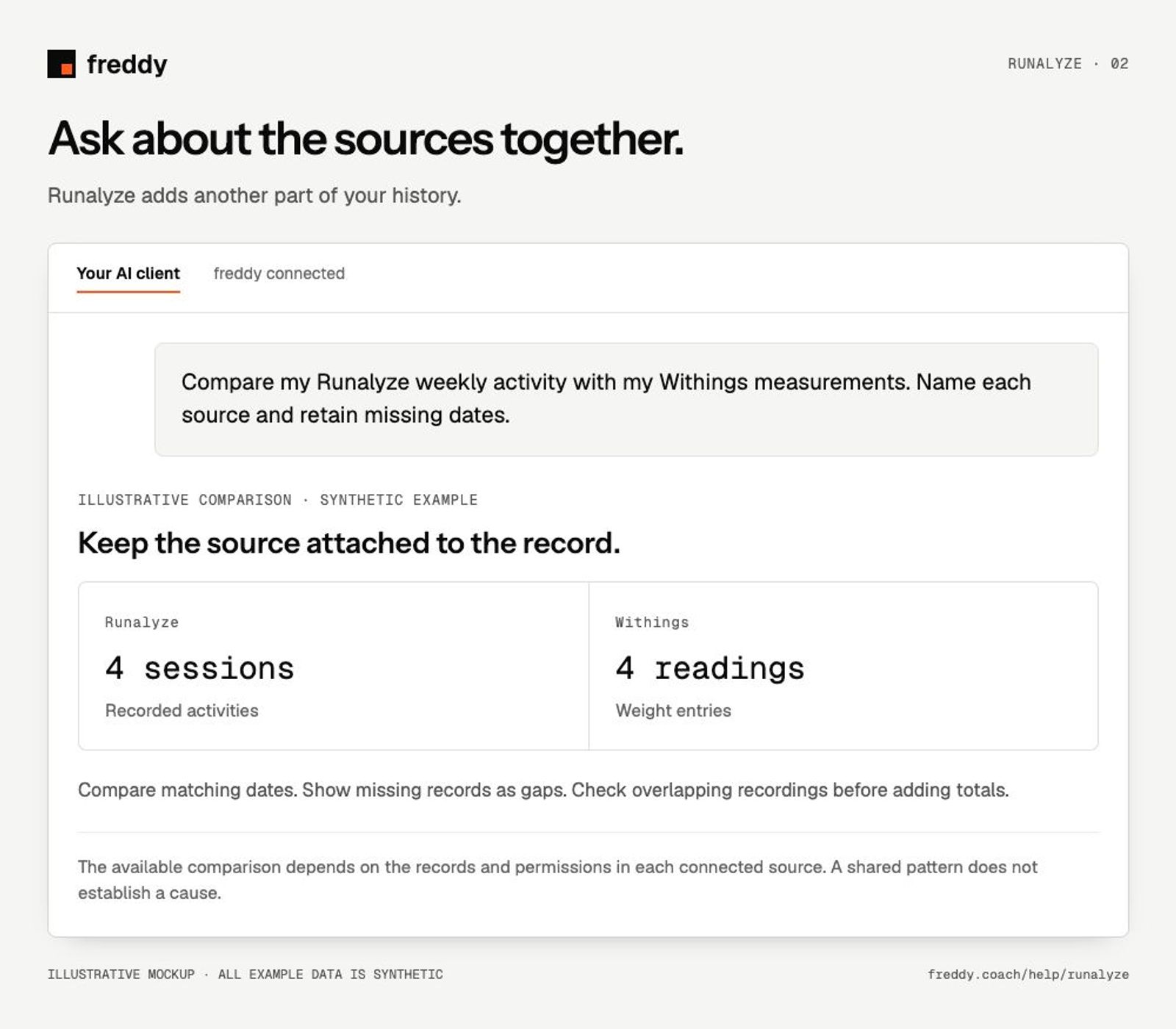
Compare my Runalyze weekly activity with my Withings measurements. Name each source and retain missing dates.
Pause or disconnect
Use Paused on the source to stop future sync without deleting its stored history. Disconnect removes the connection and its associated data from freddy; read the confirmation before continuing. It does not delete your records in Runalyze. You can also revoke the key or API client in the source service’s settings.
Provider instructions
Runalyze Personal API settings
Related help
Find missing data and understand sync
Use your Runalyze data with your AI
Pick your AI for the setup steps and ideas for what to ask.