Connect your Concept2 Online Logbook to bring RowErg, SkiErg and BikeErg sessions alongside the rest of your training.
Before you connect
Your session must be in the Concept2 Online Logbook. If it is only on the performance monitor, first transfer it using ErgData or your usual Logbook workflow.
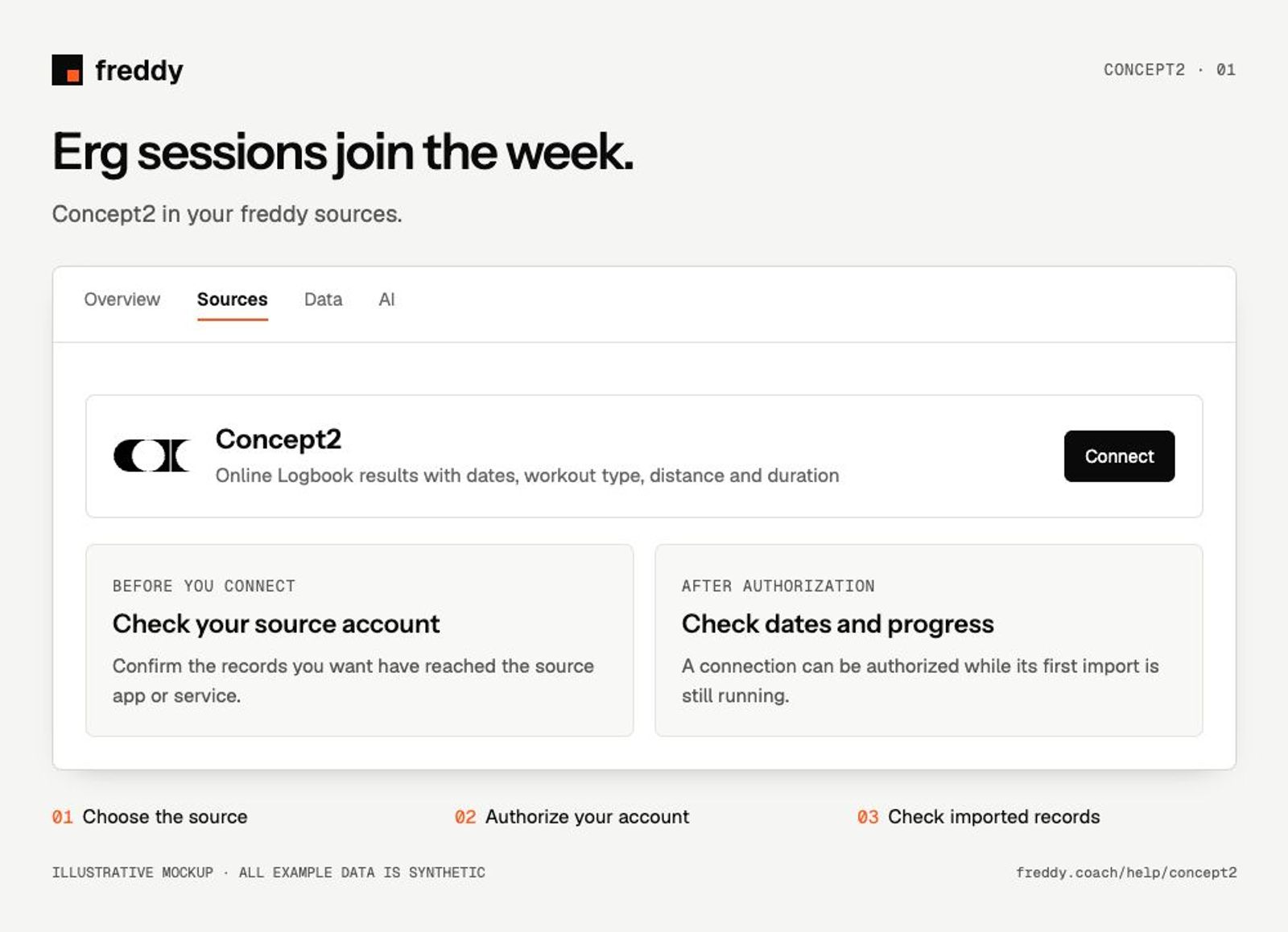
Connect
- Open Concept2 in Sources and choose Connect when available.
- Sign in to the Concept2 account containing your records. Review the permissions and authorize the categories you want to share.
- Return to freddy and inspect the source’s import status and date coverage.
What reaches freddy
- Online Logbook results with dates, workout type, distance and duration.
- Pace, stroke rate and heart rate where the saved result includes them.
- Result summaries rather than a guaranteed stroke-by-stroke recording.
History and updates
freddy reads the available results in your Online Logbook and imports new saved results. Connecting freddy does not pair it with the monitor or start a Bluetooth recording.
If data is missing
- The monitor shows a workout but freddy does not: check that ErgData has sent it to the Online Logbook.
- Heart rate is absent: check that heart rate was captured and included in the uploaded result.
- A result has the wrong date or distance: correct it in the Logbook, then request Sync in freddy.
Use it with your other sources
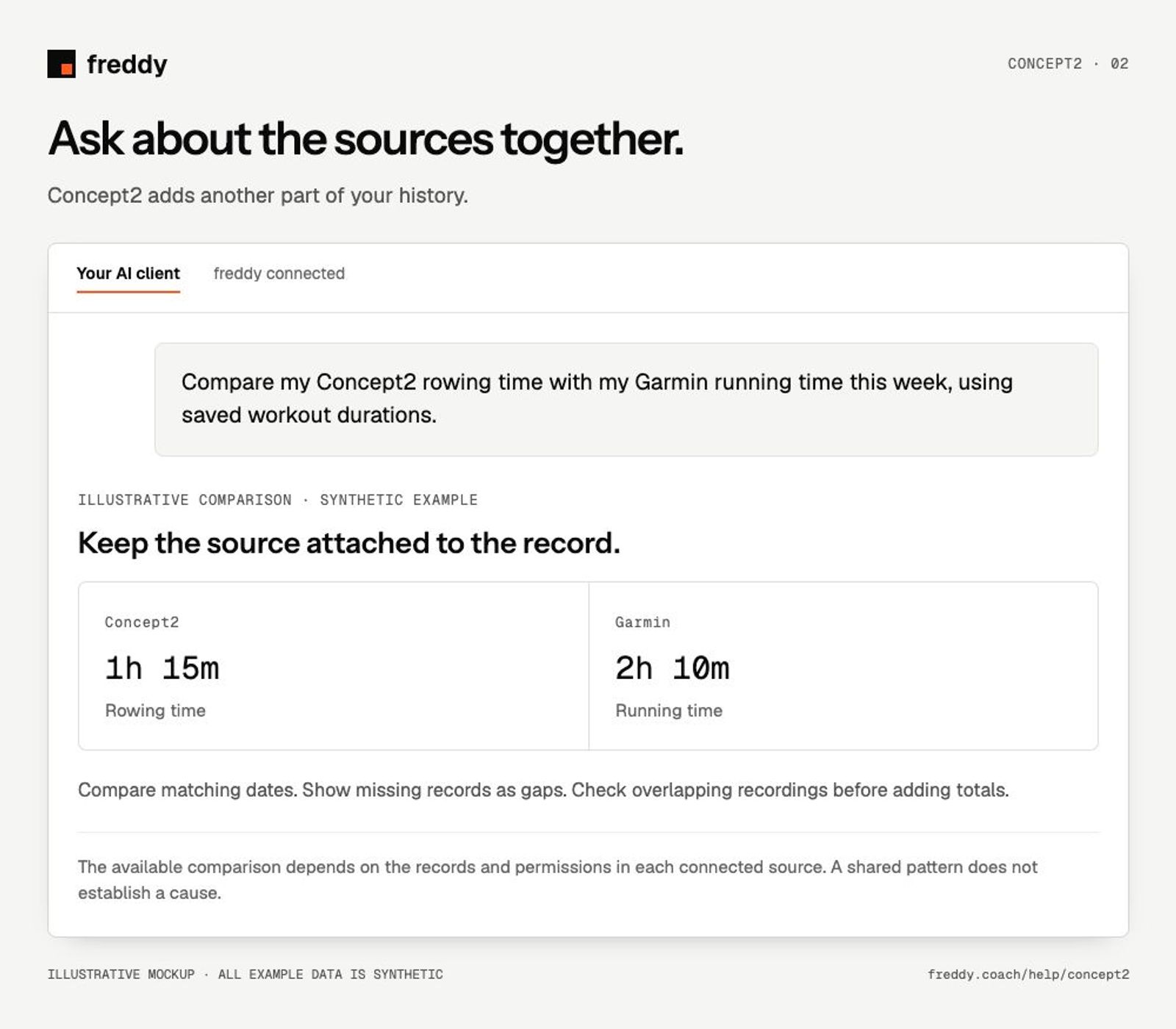
Compare my Concept2 rowing time with my Garmin running time this week, using saved workout durations.
Pause or disconnect
Use Paused on the source to stop future sync without deleting its stored history. Disconnect removes the connection and its associated data from freddy; read the confirmation before continuing. It does not delete your records in Concept2. You can also revoke freddy’s authorization in the source service’s connected-app settings.
Provider instructions
Concept2 Logbook data and authorization
Related help
Find missing data and understand sync
Use your Concept2 data with your AI
Pick your AI for the setup steps and ideas for what to ask.