Connect Lyfta workout logs so you can compare strength sessions and recorded progress with sleep and other training.
Before you connect
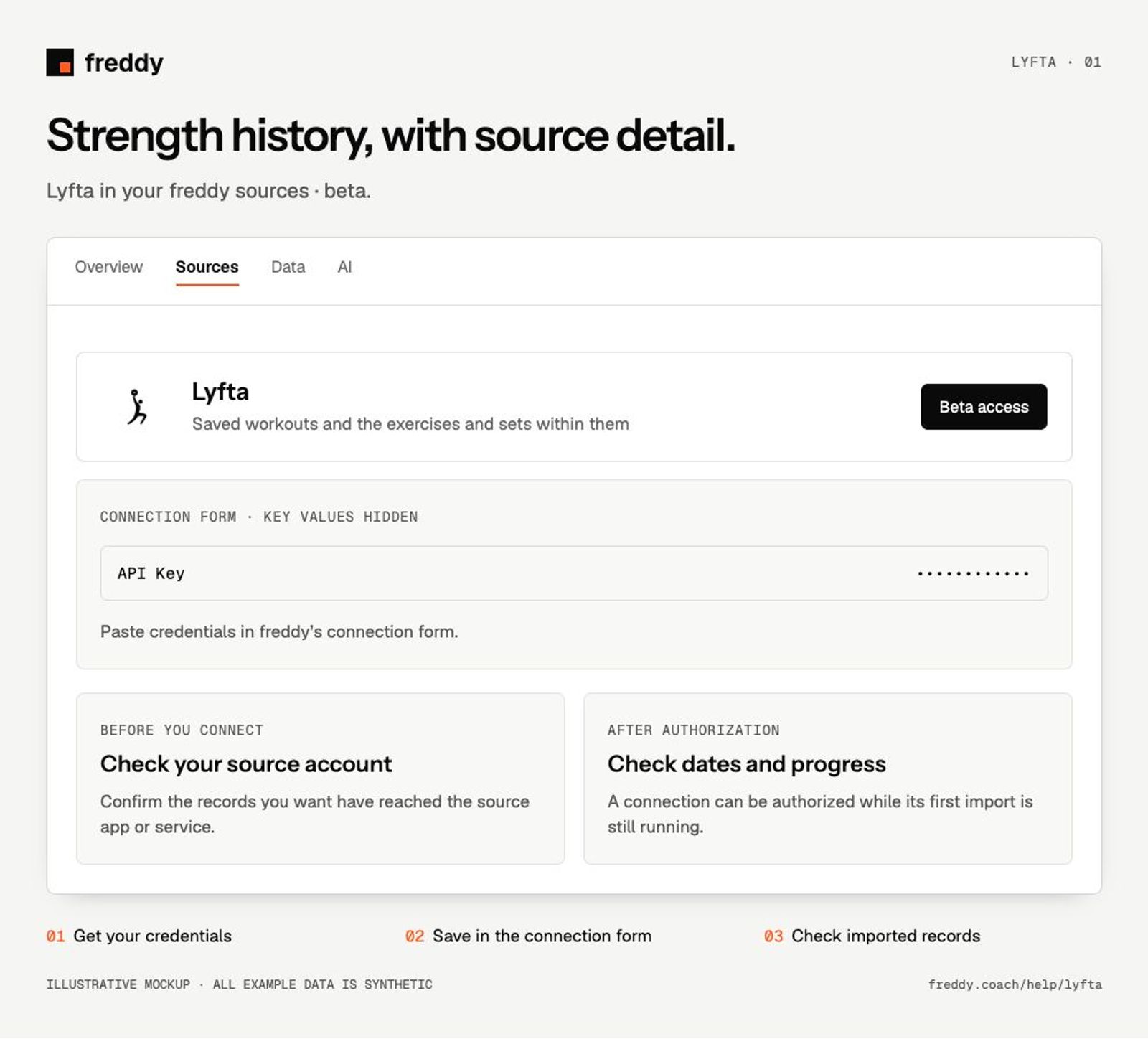
Anyone on freddy can connect Lyfta. You’ll need an API key, which you create on Lyfta’s API Access page.
Connect
- Open Lyfta’s API Access page and generate a key. Copy it when it is shown.
- Open the Lyfta source in freddy, choose Connect, and paste the key into API Key.
- Save the connection, check the import status, and compare one completed workout with Lyfta.
What reaches freddy
- Saved workouts and the exercises and sets within them.
- Recorded reps, load and available workout summaries.
- Available progress records, such as personal records or estimated one-rep max, with their source labels.
History and updates
The initial import reads available Lyfta history; periodic sync brings in new records. Keep recorded weights and units attached to the source. Estimated one-rep max is a source estimate, not a measured lift.
If data is missing
- A key fails: confirm it has not been revoked and copy it from the correct Lyfta account.
- A weight looks different: check the original entry’s units and exercise variant before comparing records.
Use it with your other sources
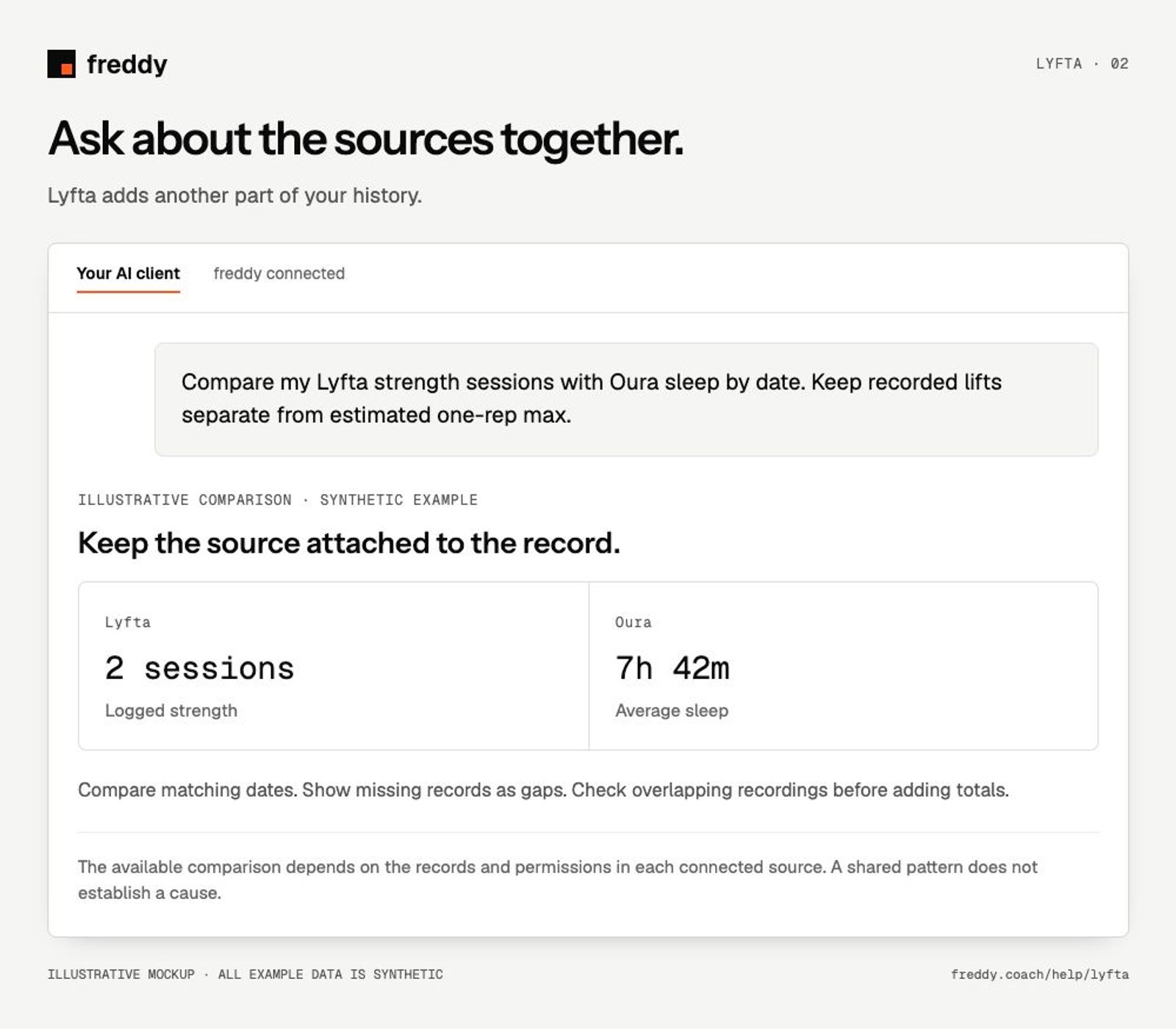
Compare my Lyfta strength sessions with Oura sleep by date. Keep recorded lifts separate from estimated one-rep max.
Pause or disconnect
Use Paused on the source to stop future sync without deleting its stored history. Disconnect removes the connection and its associated data from freddy; read the confirmation before continuing. It does not delete your records in Lyfta. You can also revoke the key or API client in the source service’s settings.
Provider instructions
Related help
Find missing data and understand sync
Use your Lyfta data with your AI
Pick your AI for the setup steps and ideas for what to ask.